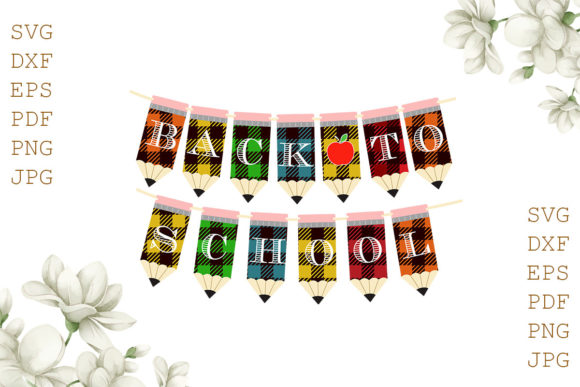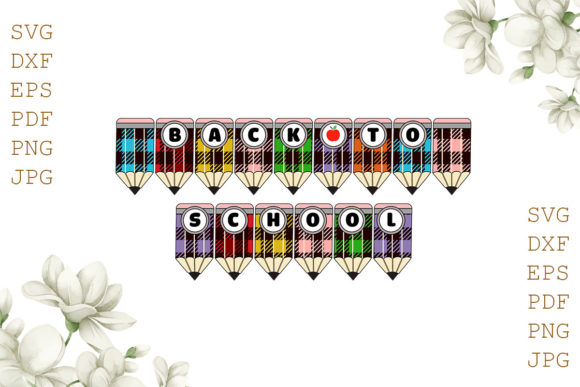
Back to School Party Decor SVG File: What to Know Before You Buy or Customize
Planning a back‑to‑school celebration transforms the end of summer into something festive and motivating. Whether you are a parent hosting a small gathering, a teacher welcoming students, or a small business owner creating party supplies, the right decor sets the tone. One of the most popular options today is the Back to School Party Decor SVG File, a digital design that lets you craft banners, cupcake toppers, shirts, signs, and more. Because these files can be customized and personalized, they offer flexibility that pre‑made decorations simply cannot match. But not every SVG file purchase turns out as expected. Many people end up with unusable files, wasted materials, or disappointing results because of a few easily avoidable missteps. This article walks through the most common mistakes, what to check before buying, and how to get the most out of your digital decor files.
Understanding What You Actually Get with an SVG File
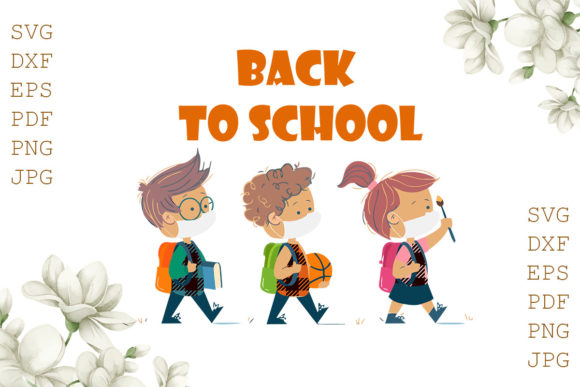
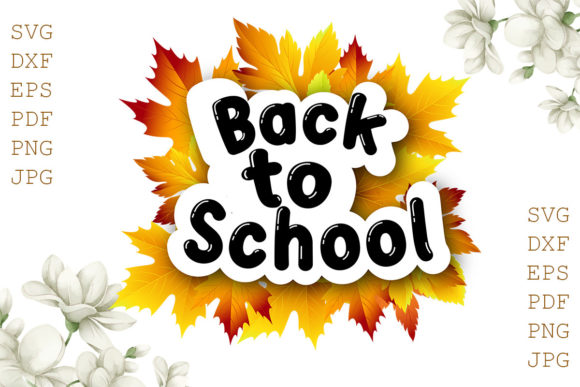
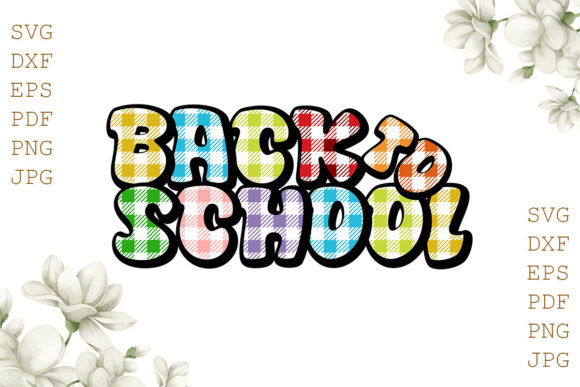
A typical listing for a Back to School Party Decor SVG File includes multiple formats: SVG, DXF, EPS, and PNG. Sellers often list them together, but each format serves a different purpose. The SVG file works with Cricut Explore, Silhouette Designer Edition, Adobe Suite, Inkscape, Corel Draw, and similar software. The DXF file is intended for Silhouette users who use the free basic version of Silhouette Studio. The EPS file is for Adobe Illustrator, Inkscape, Corel Draw, and other vector programs. The PNG file is a high‑resolution image at 300 dpi with a transparent background, useful for digital previews or print‑and‑cut projects.
A common misunderstanding is assuming all these files are interchangeable. They are not. If you try to open a DXF file in Cricut Design Space without converting it first, you will likely run into scaling or layer issues. Likewise, using a PNG file for a cut‑only project can lead to jagged edges and poor outcomes. Knowing which file matches your machine and software prevents frustration and wasted time.
Mistake #1: Ignoring File Format Compatibility
One of the most frequent errors is buying a design without verifying whether your machine can read the included formats. For instance, someone using a basic Silhouette machine might think any file will work, but only the DXF or SVG files are compatible depending on the software version. Similarly, a Cricut user who relies solely on PNG files for cutting may end up with a design that has a white background or low resolution.
How to avoid this mistake: Before you click buy, check which software and machine you use. Write down the formats you need. If you use Cricut Design Space, you typically want SVG files. If you use the free version of Silhouette Studio, DXF files are your safest bet. If you plan to edit the design extensively in Illustrator, look for EPS or SVG files. When a listing clearly states “1 SVG file – For Cricut Explore, Silhouette Designer Edition, Adobe Suite, Inkscape, Corel Draw and more; 1 DXF file – For Silhouette users; 1 EPS file – For Adobe Illustrator, Inkscape, Corel Draw and more; 1 PNG file – 300 dpi High Resolution Transparent Background,” you know exactly what is included. Use that information to confirm compatibility.
Mistake #2: Overlooking the Customization and Personalization Option
Many buyers see a beautiful design and assume it must be used exactly as shown. But the phrase “CUSTOMIZED - PERSONALIZED AVAILABLE” means the seller can adjust the file to include specific names, dates, grade levels, or color schemes. Skipping this option is a missed opportunity. A generic “Welcome Back” banner is nice, but a banner that says “Emma’s 3rd Grade Celebration” feels personal and memorable.
How to avoid this mistake: When you find a design you like, read the product description carefully. If the seller offers customization, contact them before purchasing to confirm what changes are possible. Some sellers include personalization in the price; others charge a small fee. Ask about turnaround time, especially if you need the files quickly. Providing clear details—spelling, font preferences, colors, and any special instructions—ensures the final file matches your vision. If you plan to sell the finished products, check whether the customization includes commercial use rights.
Mistake #3: Misjudging the Importance of Resolution and Transparency
The PNG file included in most Back to School SVG bundles is described as “300 dpi High Resolution Transparent Background.” That is excellent for printing, but only if you use it correctly. Some users attempt to enlarge a PNG file beyond its intended size, resulting in pixelation. Others use it in a cut‑only project without realizing that PNGs are raster images and cannot be cleanly cut the way vector files can.
How to avoid this mistake: Use the PNG file for print‑then‑cut projects, digital invitations, or mockups. For vinyl cutting, heat transfer, or stencils, rely on the SVG or DXF file. If you need a larger print size, check the dimensions of the original design before scaling. A 300 dpi image that is 5 inches wide can be enlarged to about 10 inches at 150 dpi before quality drops noticeably. For anything bigger, ask the seller if a larger vector file is available.
Practical Advice for Using Your Back to School SVG Files
Even with the right files, small missteps during the design process can affect the final product. Here are several points to consider before you start cutting or printing.
Check the Design’s Complexity and Weeding Requirements
Not all SVG designs are created equal. Some have delicate lines, tiny text, or intricate details that are difficult to weed, especially for beginners. A design with many small pieces can take a long time to weed and may tear or lift off the carrier sheet.
Better approach: If you are new to using SVG files, start with simpler designs. Look for bold outlines, larger text, and fewer tiny elements. If you fall in love with a detailed design, test it on a small project first. Use a weeding tool with a fine tip and good lighting. For intricate designs, consider using transfer tape that is not too aggressive, and burnish the design well before weeding.
Verify the Size and Scaling Before Cutting
Another common error is assuming the file will automatically fit the intended surface. A design that looks perfect on a 12x12 mat may be too large for a pencil case or too small for a poster board.
Better approach: Open the SVG file in your design software and check the dimensions. Most SVG files open at the size the designer created them, which may not match your project. Resize the design proportionally by holding the shift key (or using the lock aspect ratio feature) to avoid distortion. Test the size with a paper cutout before committing to expensive materials like vinyl or HTV.
Understand the Limits of Personalization
When you request a customized version, the seller typically edits the text or adds a name. But some design elements cannot be changed without compromising the layout. For example, if a design has text wrapped around an apple or a school bus, changing the name to a much longer word may cause text overlap or misalignment.
Better approach: When ordering a personalized Back to School SVG file, provide the exact text you want. If the text is long, ask the seller if they can adjust the font size or layout to keep everything balanced. If you plan to edit the file yourself later, make sure you receive an editable format like SVG or EPS, not just a flattened PNG.
What to Check Before Buying a Back to School Party Decor SVG File
Making a smart purchase saves time, money, and frustration. Here is a checklist of what to look for in a listing.
- File formats included: Confirm that the bundle contains the formats you need. The listing should clearly state SVG, DXF, EPS, and PNG.
- Customization policy: Look for specific instructions about how to request personalization. Some sellers include a notes field at checkout; others prefer a conversation via messages.
- Commercial use rights: If you plan to sell items made from the file, verify that the license allows commercial use. Many independent sellers offer a standard license for personal use and a separate extended license for commercial production.
- Design preview quality: Examine the listing images closely. Zoom in to see the level of detail, check for smooth lines, and look for any jagged edges in the preview. A good preview reflects the quality of the actual file.
- Seller reviews and communication: Read feedback from previous buyers, especially those who ordered customizations. Look for comments about file quality, response time, and accuracy of personalization.
- Refund or exchange policy: Understand what happens if the file has an error or does not work with your machine. Most digital files are non‑refundable, but reputable sellers often help resolve issues.
Bringing It All Together: Making Your Back to School Party Decor SVG File Work for You
The Back to School Party Decor SVG File is a versatile tool for anyone who wants to create custom decorations, gifts, or party supplies. When you choose the right formats, take advantage of personalization options, and prepare your materials carefully, the results look professional and thoughtful. Avoiding the common mistakes covered here—ignoring compatibility, skipping customization, misusing file types, and neglecting weed complexity—helps you get the most value from your purchase.
A warm welcome to everyone who is exploring SVG decor for the first time. Thank you for shopping. Whether you are crafting for your own family, a classroom, or a client, these digital files give you the freedom to create something unique. Take a moment to review the listing details, ask questions if anything is unclear, and enjoy the process. With a little preparation, your back‑to‑school celebration will be both beautiful and personal.